Showing posts with label ERP. Show all posts

Monday, December 24, 2012

Write-off Batches in Sage 300 ERP


We come across situations where Customer receipts have amounts shorter as compared to invoice amounts but the difference is too small to keep the invoice open.

The reasons to short close these invoices can be purely Customer Management related, now the question is how to configure these in systems?

Further to this, if there are more than 1 such documents and multiple number of such customers, then Knocking-off document-by- document will be very tedious and time consuming task

Therefore, Sage 300 has a feature where we can write-off a document in the terms of amount and percentage as per our requirement.

Let’s see this with help of example:

Suppose we have received the payment of INR 10000 from a customer against the invoice of INR 10002. And our management says for the sake of customer relation, we waive off this INR 2.

As we can see payment amount and invoice amount does not tally therefore,

We need to setup system for such kind of behavior otherwise; our book balances will not tally with the system balances.

This inconsistency can be overcome by using write-off batches functionality
We can write-off the documents depending on various types as mentioned below.

1. Outstanding Transaction.

2. Overdue Transaction

3. Overdue Balances

4. Outstanding Balances


There are several filtering criteria’s provided by the system such as you can execute the write off batch on a particular date, if you want you can use specific type of transactions to write-off, further to this you can select the documents based on the customer and customer groups. You can refer the below write off screen which is present in Accounts receivable->AR Periodic Processing->Create write off batches.
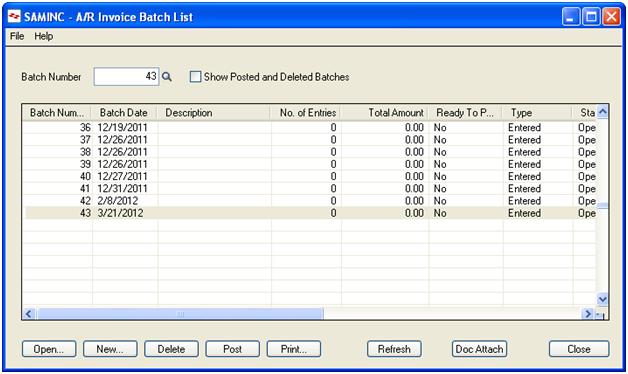
Once the batch is executed, system will create an un-posted entry in AR invoice batch list where it will Credit the customer on one side and will Debit the write off account defined in AR account set on other side.

Tuesday, September 11, 2012

Using BOM and Assembly to Convert Items in Sage Accpac aka 300 ERP


The other day we were discussing Sage 300 for a prospect in Fabric industry and came across a requirement where they needed to convert a roll of fabric into multiple pieces. The simple solution provided was to have more than 1 UOM (Units of Measure) defined for the same item and then based on the conversion unit transact the item in both the units Roll and Pieces. However, they insisted on maintaining the item separately for Roll and Pieces. Now this situation can be handled using the BOM and Assembly functions of Accpac aka Sage 300.
Listing down the steps on how to define BOM (Bill of Material) and then assemble an item (Raw Material) to form finished good.
Go to Inventory Control Module and select Bills of Material under I/C Items and Price Lists. Select the Master Item as the item to be prepared as the finished good, which in this case will be Fabric Pieces. Assign a BOM number, Fixed and Variable costs that can incur in the conversion of roll into pieces. Fill in the build quantity as the no. of pieces that can be made using 1 unit quantity of roll (e.g. 10 pieces of 1 meter each if the roll is of 10 meters.). Select the Component item as Roll, enter the Unit Quantity (e.g. 10 Meter) and then save this BOM.
Now whenever a conversion is to be done, go to I/C Transactions> Assemblies and select the Master Item number, Location and Build Quantity and then run the assembly. This will convert 1 roll of fabric (say 10 meters) into 10 Pieces of fabric (say 1 meter each).
The benefit of using this process is that you can program the system to take care of the costing of cut-pieces based on the cost occurred in procuring the role.
On top of this, you can also record the loss of fabric due to the cutting process involved by entering the actual quantity in build quantity. (e.g. 1 roll converts into 9.7 pieces – provided you have allow fractional quantities checkbox on) and also if there are any fixed or variable costs involved in the process, they are taken care of.
This process will help you keep a more detailed track of stock that you own in different UOM and also automate to add the conversion costs and wastages to finished goods.
Hope this helps. Keep visiting for more.

Monday, July 23, 2012

Meet the new face of Sage ACCPAC ERP, Sage 300 ERP


Sage Software is undergoing re-branding as it approaches the 31st year of providing market leading business solutions provider to small and medium businesses across various geographies.
In 2012 the names of many of our Sage products accounting and ERP lines, including those designed for nonprofits and the construction industry, are changing. These products will be identified with a numbering approach where higher numbers denote increasing levels of product capability or sophistication. Our product numbering sets include Sage One, Sage 50, Sage 100, Sage 300, and Sage 500. Thus our good old friend Sage ACCPAC ERP gets a new makeover and a new name, Sage 300 ERP.
Sage 300 ERP is now currently in version 6.0 and the editions 100,200 and 500 will be called Standard, Advance and Premium respectively. ACCPAC is just getting a new name, rest it is still as efficient, robust, user friendly and cost effective as ever.
Read more for the various add-ons and customizations on Sage ACCPAC ERP, correction, Sage 300 ERP.
Even you will get the hang of it soon.
Keep Reading.

Friday, July 13, 2012

New release of Greytrix Document Attachment for Sage 300 ERP


We are glad to announce new release (with a complete makeover) of our Greytrix Document Attachment solution for Sage (Accpac) 300 ERP v5.6 & 6.0.
Lets see its features and whats new.
Product Features:
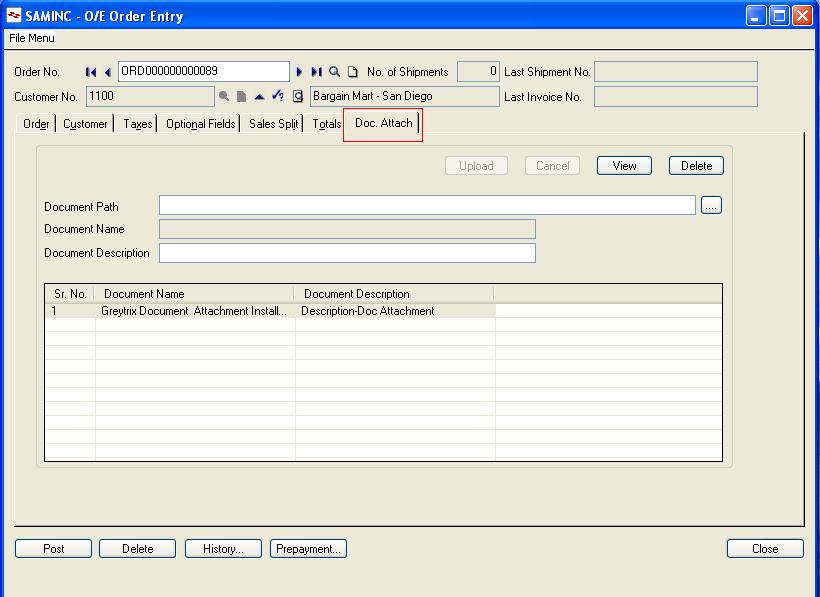
* Allows you to attach scanned documents/reports/Fax/images to almost all the transaction screens in Accpac like Order Entry/ AR Invoices/ AP Invoice/ Purchase Order/ PO Invoice/ Adjustments/GL Transactions.
* Using this product  user can now keep a track of Original Sales Orders/ Purchase Orders/ Amendments done to the  Orders/ Revised Orders
* Using this product user can attach documents to the AP/AR Adjustment Entries which have been passed and posted with a manual approval of an authorized person on Paper.
* Below is the screen shot of O/E Order Entry screen with document attachment tab, where user has selected one text file .
Document attachment functionality is provided on the following screens. [Can be added to others if needed]
  • AP – Invoice Entry, Adjustment Entry, Payment Entry
  • AR – Invoice Entry, Receipt Entry, Adjustment Entry
  • GL – Journal Entry
  • OE – Invoice Entry, Order Entry
  • PO – Invoice Entry, PO Order Entry
Now lets see Whats New
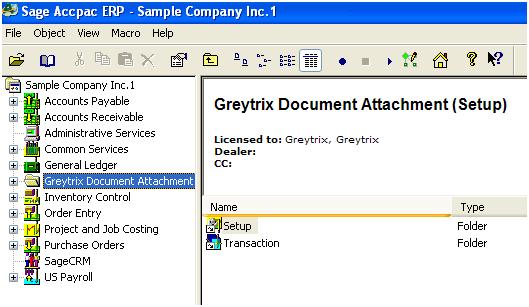
1. This version of Document Attachment product is now released as a Module (registered with Sage), so that standard Accpac transaction UI is not disturbed and patch updates don’t affect the product and the system. It is compatible with Sage (Accpac) 300 ERP v5.6 and 6.0.
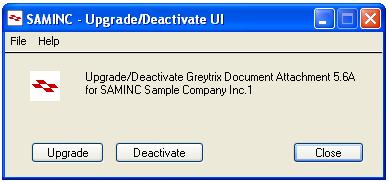
2. Ability to activate or deactivate Doc Attach module per company. (As shown in below screen shot)
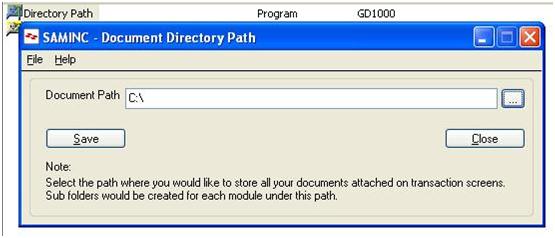
3. Now you can configure UNC filename path in the new Setup Screen and no need to maintain Document Attachment.ini file. (refer the screen shot)
4. Doc. Attach functionality extended on following screens [Can be added to others if needed]
  • AP – Invoice Batch List, Adjustment Batch List, Payment Batch List
  • AR – Invoice Batch List, Receipt Batch List, Adjustment Batch List
  • GL – Batch List
  • OE – Shipment Entry
  • PO – Receipt Entry
5. You can now attach documents to historic transactions in Accpac (already posted transactions).

Tuesday, July 3, 2012

Clearing the Deposit one by one in Bank Reco even though we have entered multiple entries in one batch of AR Receipt.


In Sage Accpac 6.0-500 it is not possible to clear the individual entries in Bank Reco.
Consider a case where you have entered 5 receipt entries in one batch then in such cases we have to clear the entire amount at once in Bank Reco. Accpac does not allow clearing of individual receipt one by one in Bank Reco. screen but after the release of Product Update 1 for Accpac 6.0 they have recovered from this bug and provided a way to clear the entries individually.
                                                                             
Following is the process for the same.

Process:
1.       Go to the Bank Reconcile Statement Screen.

            
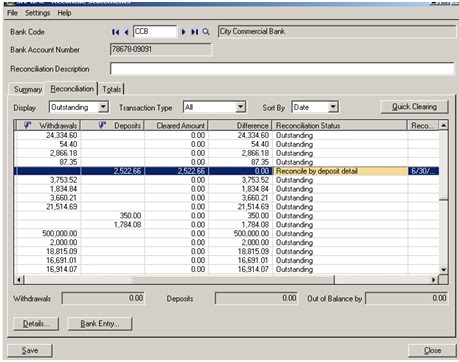
2.       In the above Screen shot I have highlighted one entry of a deposit of amount 2522.66. The entry contains two AR receipts one of amount 2171.08 and other of amount 351.58. By default the status of the entry is outstanding as shown below.
3.       As this amount consists of two different amounts, we need to clear only one amount out of two. Thus here you need to change the status ‘Outstanding’ to ‘Reconcile by deposit detail’ as shown in the following two figures.

Own below

4.       After changing the status of the line click on the Detail button which lying at the bottom of the screen as shown below.

          
5.       After clicking on the detail button the following screen will open.

6.       As shown above the highlighted area contains the total amount which consists of two entries which are reflecting in the grid below.
7.       Now consider a case where we want to clear only the first entry. Thus in this case we will enter only the amount that we want to clear in the highlighted area as shown below.
8.       In the below figure you will notice that the cleared amount at the top has been change to 2171.08 and then we have change the status of that individual entry from outstanding to Cleared.
9.       After changing the status click on the save button and close the screen.

10.   After closing the screen, you will get the following display which will show you a difference of 351.58 which is yet to be cleared. And which you can clear later according to your requirements.


11.   In this way you can clear the individual receipt entries in the bank Reco even though you have entered multiple entries in single batch in AR Receipt Batch.

Friday, June 22, 2012

Greymatrix – Apparel Solution for Sage Accpac ERP


Greymatrix is a grid inventory system that offers Apparel Retailers with a user friendly interface to maintain transact and analyze their large inventory distributed by style, colour and size. Seamlessly integrated with Sage (Accpac) 300 ERP, GreyMatrix helps the garment and shoe merchants to obtain a 360 view of their inventory, operations and finance and provide detailed retail analytics and business intelligence.

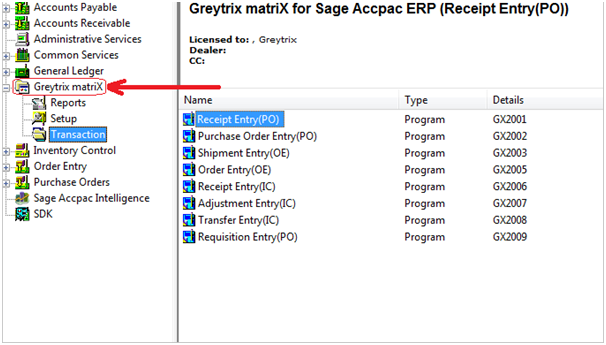
Overview: Below screen shot shows the GreyMatrix module in the Sage (Accpac) 300 ERP

Features:

Comprehensive solution with integrated Finance, Operations and Inventory modules.

·         Capture unlimited Style, Color, Size and Images.
·         Simplified Data entry during Procurement, Sales and Distribution.
·         Integrated with Special Localized Taxations.
·         Reduce pilferages in stock at SKU level.
·         Exclusive Style master for item generation.
·         Option to generate Generic Reports along with Style images.

In our next blog we will show how the Setup and Transactions works.

How to generate Styles in Greymatrix for Sage 300


In our last blog, we discussed about how to setup GreyMatrix for your Sage (Accpac) 300 ERP system.
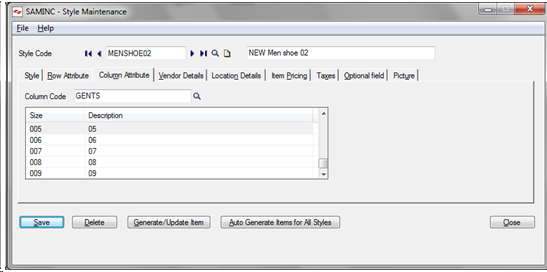
Today, we will discuss about how to generate the items for a particular style. As now we are aware that Style is based on 3 important parameters i.e. Color, Size and Style. Thus our Style maintenance generates different items based on the combination of all the Colors and Sizes selected against the style.

Let us brief out the functionality of the style master screen; this function is similar to item master screen, the only difference is that, we create the style for maintaining the items, color and size wise.
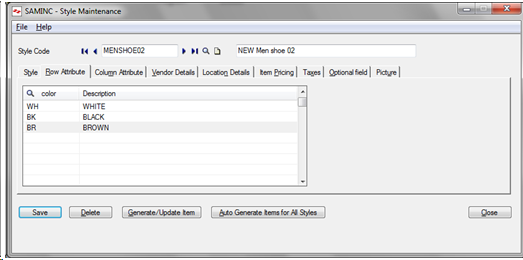
As the need of the Apparel is to allow the user to enter different colors and sizes at a single point of time, Greytrix Apparel creates a 2 X 2 matrix where the Color = Row Attribute and Size = Column Attribute.


Now as we have already selected the Color and Size, we need to set the vendor detail and location detail for the Style.
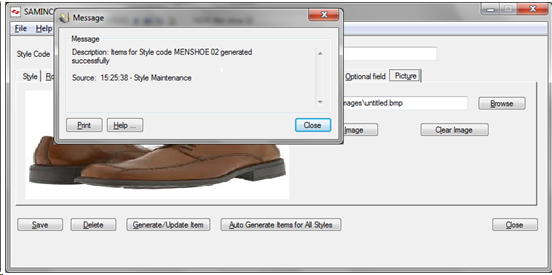
Similar to the item master we can also assign the optional fields (If required) and taxes in respective tab. You can add the picture in the picture tab so that you could keep track on the style easily.
After entering all the details in respective tab we are ready to create a style, click on save to save the details and to click on Generate/Update button to create the Items with the combination of all colours and sizes.


After generating the items from the style master, you could find the list of items which are generated based on the combination of Style code, Color and Size. I.e. if we have 3 colors and 5 sizes of particular style, we will have 15 total items in the IC item table. All these items generated are having same configuration as selected in the Style.
If user wants to modify the style, he /she can modify the style and then need to click on save and Generate/Update button to update it in the item master.
We also have a short video which summarizes this process.

Saturday, June 16, 2012

Database Profiles table error on Sage 300 Workstation


You come across Database profiles table error while opening the database Setup utility on a Sage (Accpac) 300 ERP workstation. It may persist even after you assign all Read\Write rights to the system and windows user on Sage Accpac folder in installation directory.


This type of error occurs due to invalid path of Programs and Shared data while installing Accpac Workstation on another machine. Suppose we have installed Sage Accpac Server on one system having IP as 192.168.0.56 with installation directory path for Sage Accpac as
Programs       C:\Program Files\Sage\Sage Accpac6.0
Shared data   C:\Program Files\Sage\Sage Accpac6.0\Data
Subsequently, we assign necessary rights to user of the workstation machine from the server where Sage Accpac in installed, as shown in the screenshot below.


Usually, we consider this type of issue is due to inadequate rights and that’s correct. However there may be some other cause ahead of this which can result in the above error. You may follow the below procedure to overcome this.
1. As mentioned above, firstly cross check if rights have been assigned on Sage Accpac Server machine to the windows user where Sage Accpac workstation has been installed (refer the above screen shot).
2. Then, on the workstation machine go to Start>>Run>>Type ‘regedit’ and press enter. A registry editor screen will be opened.

3. In registry Editor Page Go to My Computer >> HKEY_LOCAL_MACHINE >> Software>> Accpac International, Inc >> Accpac >> Configuration.

 As in above screenshot, the path for Shared data is given as ‘\\192.168.0.56\Sage Accpac 6.0’ wherein 192.168.0.56 is the IP of Accpac Server machine and rest is shared directory of Sage Accpac on Sage Accpac Server machine. But on Sage Accpac Server machine, we had put the directory path as ‘Sage Accpac6.0\Data’ which is different from the path mentioned in the above screenshot.
4. Now click on Highlighted Shared data. It will show you certain options. You may select ‘Modify’ option to make the changes.
5. Once we click on ‘Modify’ the Edit String screen will appear. It will allow you to change the path of the Shared Data in Value Data Field. Now put the path as given in below screenshot.


6. After following the above steps, Go to Start menu and open Sage Accpac>>database Setup. Now the Sage Accpac database setup screen should open without any issue.
In this way, we can operate Database Setup on Sage (Accpac) 300 ERP workstation.

Friday, June 8, 2012

Customer Number Merge in Sage 300 ERP


In our earlier blog we discussed about the Customer Number change feature, now lets see how customer number merge works in Sage (Accpac) 300 ERP in a similar situation like migration.

We will now see the ‘Combine’ option under the Customer Number Change utility found in the AR module. The ‘Combine’ option allows two or more Customers to be combined or we can say ‘merged’ into a single target Customer. The target must be a customer existing in Sage (Accpac) 300 ERP . Customers are not created during the Combine process. The entire source Customer’s data records, including account balances, history and transactions will be merged into the existing or target Customer’s account. The source Customer Number is then permanently removed from the Sage ERP Accpac system.


Let’s look at an example as shown in screenshot in which the client wanted to keep single Customer say ‘ESSAY INFOTECH’ from two customers from his source ERP which are ‘ESSAY SOFTAWARES and ‘ESSAY INFOTECH’. So we would follow the below procedure to merge the customer code ‘5001’ into ‘5002’
1. Choose combine option from the action box on the new window.
2. In the Combine box, choose the customer number which you wish to combine into the final or target Customer Number. This can be done by typing in the Customer Number, moving through the list of Customer Numbers using the Up and Down Arrow keys, or choosing on the List Button and selecting the Customer Number. Here we have selected customer code ‘5001’. Once the Customer Number has been chosen, the corresponding Short Name and Customer Name are displayed in the appropriate fields.
3. In the ‘In To’ box, type/ select the target Customer Number, that should consist of the combined information. Here we have selected Customer code ‘5002’. Also, within the ‘In To’ box the displayed Short Name and Customer Name can be edited if so required.
4. Once you are satisfied with the information, choose the OK button to add this entry to the Change List. Choose Cancel to discard the current change entry.
Thus, we can merge or combine two or more customers into one Customer for Sage (Accpac) 300 ERP . These and other helpful features make Sage (Accpac) 300 ERP a preferred ERP by small and medium sized businesses to migrate.

Saturday, May 19, 2012

How to resolve: Error Code: 711


Many of our TDS clients face this issue while opening the AP Invoice/Payments Screen, below is the message popped up.
 “Error code: 711 Invalid class string. Looking for object with ProgID ” (refer below screen shot for error).


We have arrived at some conclusions regarding this cause of the issue as listed below:
  • The respective file is not registered in the registry OR
  • User may do not have the sufficient rights to use the AP module

To solve this error you need to do the following steps:
  1. Close the Accpac, if it is in running mode.
  2. Examine the user right for Sage Accpac folder, if not defined then please give the rights to the user.
  3. If the operating system is window 7/window vista then make user as a power user. 
  4. Execute the RegAcc.exe as administrator [you will find this in sage Accpac installable folder i.e. C:\Program Files\Sage Software\Sage Accpac\Runtime]

 Hope this helps!

Greytrix TDS v2.2 for SAGE 300 ERP


Sage 300 (formerly Sage Accpac ) ERP has flexibility to support the unique needs of multi-site and global organizations. For global organizations with offices in India we have developed a must- needed Tax Solution "Greytrix TDS (Tax Deducted at Source ) for Sage 300 ERP"
Get ready for a First look of our Greytrix 300 (Accpac) ERP with enhanced features. in this version Greytrix TDS ( Tax Deducted at Source) modules will be available in portal with all these features.
Tax deducted at Source is an add-on for Sage Accpac ERP enabling organizations to maintain complex requirements on Tax Deducted at Source and generates reports and forms required by the Central Government including eTDS file. Tax deducted at Source automates your tax deduction calculations under various sections and slabs and provides you comprehensive, accurate and detailed reporting.
Overview of enhancement of Greytrix TDS portal:  
Below Image show the user interface links of Greytrix TDS provided in the Sage 300 Portal.


You can easily Generate TDS related Reports like:
1.       Form 16A
2.       Form 26Q/27Q
3.       Deduction and remittance
4.       TDS challan
5.       E-TDS quarterly return

Lets now see the shortcut navigation tab of Greytrix TDS for Easy access of User Interface in Sage 300 ERP Portal


Now lets look at User Interface of “Nature of deduction” from portal.  User can easily access the entire screen same like earlier version of TDS but with new advanced look.


Do provide us with you feedback/suggestion on sage@greytrix.com . We would be glad to make additions to our existing list.

Friday, April 6, 2012

Sage 300 ERP a best fit for Hotels and Resorts


Pairing up with Smart Hotel Software, Sage software has deployed an easy to use and economically priced hospitality management software package for hotels with room size starting from 50 to beyond.
Sage Hospitality Suite consists of UniResMan and Sage 300 ERP formally known Sage ACCPAC ERP. UniResMan PMS will manage your reservations, deposits, check ins, check outs, guest folios, payments, sales & audit reports, housekeeping, and maintenance, with a strong interface to Sage Accpac ERP. Apart from the above crucial features, the package also offers you Yield management, Security, Web based reservation etc which hoteliers are finding it of great help.
 Sage 300 ERP is highly flexible, with an open database that lends itself to integration with other applications such as Smart Hotel Software which features a seamless integration to Sage 300 ERP which is considered to be one of the best Software Solution for single or multiple Hotel and lodging businesses.
One of the leading Hotel Company with more than 100 hotels operating in 27 countries using Sage ACCPAC ERP have developed an automated Income Journal that posts daily from their property management system directly to the hotels’ general ledger .This is just one example of how they have leveraged the product, to give their hotel managers the information they need to maintain and improve the operational efficiency of their properties.
To achieve the ideal business intelligence of tomorrow, hoteliers of all shapes and sizes are eagerly looking for a resource planning systems like Sage ACCPAC ERP which gives them the details they require for successful day-to-day op­erations, and helping owners get the summarized information they need for long-term planning.
With this in place, Sage ERP Accpac achieve almost all the hotel’s requirements precisely, delivering core accounting functionality, remote access capabilities, flexible reporting, and scalability at a competitive price.

Sage ACCPAC ERP also now known as Sage 300 ERP  is an extremely powerful tool that enables you to better manage your business by handling some of your tedious tasks such as: 
  • Data availability which  ensures that you have a full record of customer data
  • Multiple users can access the package as a staff or administrator and these profiles can be fully tracked and managed.
  • Bill generation based on rooms, rates and other required services and enables you to directly print out the bill
  • Track bills and payments.
  • Saves time and also presents a professional approach to customers.

For assistance in determining if a Sage Business solution can help your Hotels better serve your business needs call 022-67687800 or mail us at sales@greytrix.com

Tuesday, January 31, 2012

Require ERP ? Ask for Sage ACCPAC ERP.

Every company requires a bridge which integrates their internal and external information. Information which is in the form of accounts, operational information, transactions, human resource, manufacturing planning,etc. An ERP through it modular architecture approach gives organisations a systematic workflow as well as a 360 degree view of all the departments.It actually segregates the available information and provides you with more clear and easy to access environment. ERP is must for every organization be it SME organisation or Large enterprises. The information is vast, even a small company has few people assigned especially to perform back office task such as Order tracking, revenue tracking etc. Handling such a huge amount of information becomes a nightmare for any team with a local customized solution or next to impossible for a company without any resource planning system. ERP is not only a solution, it is a tool using technology to solve the problems and streamline the business process. Advantages experienced by companies after implementing ERP are immense like : 1. Visibility: - Data or Information is visible to the entire members of the team operating back end operations. 2. Error-free: - Human err in inevitable but atleast reduces error percentage drastically and improves decision making. 3. Remote access: - Branches stay connected remotely and multiple operations can be performed from multiple locations. The best feedback by companies using an ERP solution is that they have gain control to their information. Many have achieved using Sage ACCPAC ERP. If you require ERP you contact Sage.Mail us at sales@greytrix.com

Friday, April 23, 2010

Trading and Manufacturing Excise for ERP (Sage Accpac ERP)

Sage is a leading supplier of business management software and services to 6.1 million customers worldwide. From small start-ups to larger organizations we make it easier for companies to manage their business process. Whether your growth plans include buying and selling in the global marketplace, adding more talent to your team, or expanding your services, Sage Accpac ERP, part of the Sage Accpac Integrated Suite, have the tools and the flexibility to successfully accelerate your business expansion. Supporting different languages and multicurrency transactions, our network of partners in more than 150 countries allows you to confidently conduct business with suppliers and customers anywhere in the world.

Greytrix is an internationally renowned partner of Sage Software with more than 500+ clients worldwide. Greytrix specializes in providing business solutions to SME organizations implementing Sage Accpac ERP and Sage CRM software. Greytrix is an organization recognized globally and well known for its development capabilities in the form of customization and modification abilities, providing data migration and integration solutions as well as other extended solution offered for the ERP/CRM system. With a strong development background Greytrix has developed the Excise module for Sage Accpac ERP, a flagship product of Sage Software. Understanding the complexities of the Indian Taxation system and the need of capturing those essentially into Sage Accpac ERP, Greytrix stepped in with its 100 man years of experience on Sage Products to develop an excise module tackling both manufacturing as well as trading excise transactions.


Out of the unlimited taxes levied upon various industries, Excise duty is one more tax applicable on all the goods produced or manufactured here in India. Hence we have Excise duty applicable for traders as well as manufacturers. Every person who manufactures, produces, carries on trade, holds warehouses for excisable goods shall have to obtain registration under the excise laws. No excisable goods may be removed from the factory or a warehouse except under an invoice signed by the owner of the factory or his authorized agent.


Every assessee has to submit to the superintendent of Central Excise a monthly return in the specified form. For specified situations such as manufacture of goods exempt under a notification, a prescribed declaration and/ or a financial statement needs to be filed. Credit of service tax paid on input services, by a manufacturer of goods, is now available, in addition to the credit that was available in respect of inputs/ capital goods.


In India, the revenue from the Excise Tax is the biggest single financial source. The main objective of the central Government is to achieve different socio-economic policies by making suitable adjustments regarding the scope, nature, and quantum of levy of the Central Excise Tax. Such schemes of the Excise Tax taken by the central government modifies and serves various purposes of price control, adequate supply of essential commodities, promotion of small scale industries and industrial growth.


There are three different types of Central Excise Tax applicable mainly the Basic Excise Duty, Additional Duty of Excise and Special Excise Duty which fall under various Sections of the law. Various trade commodities are issued it these taxes depending on the predetermined government format. Also we have an excise tax that is levied on the service industry. Formerly called the Central Excise Duty, this tax is now known as the Central Value Added Tax (CENVAT). Manufacturers may offset duty paid on materials used in the manufacturing process by using that duty as a credit against excise tax through a process known as Central Value Added Tax Credit (CENVAT Credit). The offsetting process was formerly known as Modified Value Added Tax (MODVAT).


Greytrix Manufacturing Excise Module and Greytrix Trading Excise module for Sage Accpac ERP available for versions 5.4 and 5.5 incorporates these complex tax structures in synch with your finance, inventory and sales distribution.
Greytrix Statutory & Excise module for Trading and Manufacturing offers maintenance of
· Standard registration and statutory information like PAN, ECC, CE, Reg No., VAT, Central Sales Tax No., RG32 Numbering methods
· Excisable and Non Excisable Locations/Warehouses
· 20+ Excise specific Customer
· Information like CE Commiserate, CE Registration Number, ECC,PAN
· 30+ Vendor Information like CE details, Division Details, PAN details, Range Details
· 20+ Item Details for Excisable Items like Tariff Class, Price, Item Type

Along with government aspired reports like Excise Purchase Bill Register, Excise form 2 Part 1 & 2, Excise Stock Register, RG 23 A & C Part 1 & 2, Stock List, Stock Registers and many more. Read more about the features of Trading Excise Module.

Excise Taxes reporting in a trading organization is one of the most crucial and time consuming tasks and a nightmare for the accountants and management. Small and Medium businesses spend days and months in manual data management and collection for reporting to Excise Tax authority and still end up having problems and issues at the final reconciliation.

Statutory and Excise Module for Sage Accpac ERP provides small and medium trading enterprises a seamless way to input information, furnish returns and maintain mandatory registers as required by Indian Tax authorities while making sure that the workflow, inventory valuation, financial reporting and operational modules data integrity is maintained in Sage Accpac ERP provided by Greytrix.